AI Browser Automation for Beginners – How to Automate Repetitive Tasks
Learn how to use AI browser automation, how to use Antigravity to automate repetitive tasks in your browser, and the important safety considerations for beginners.
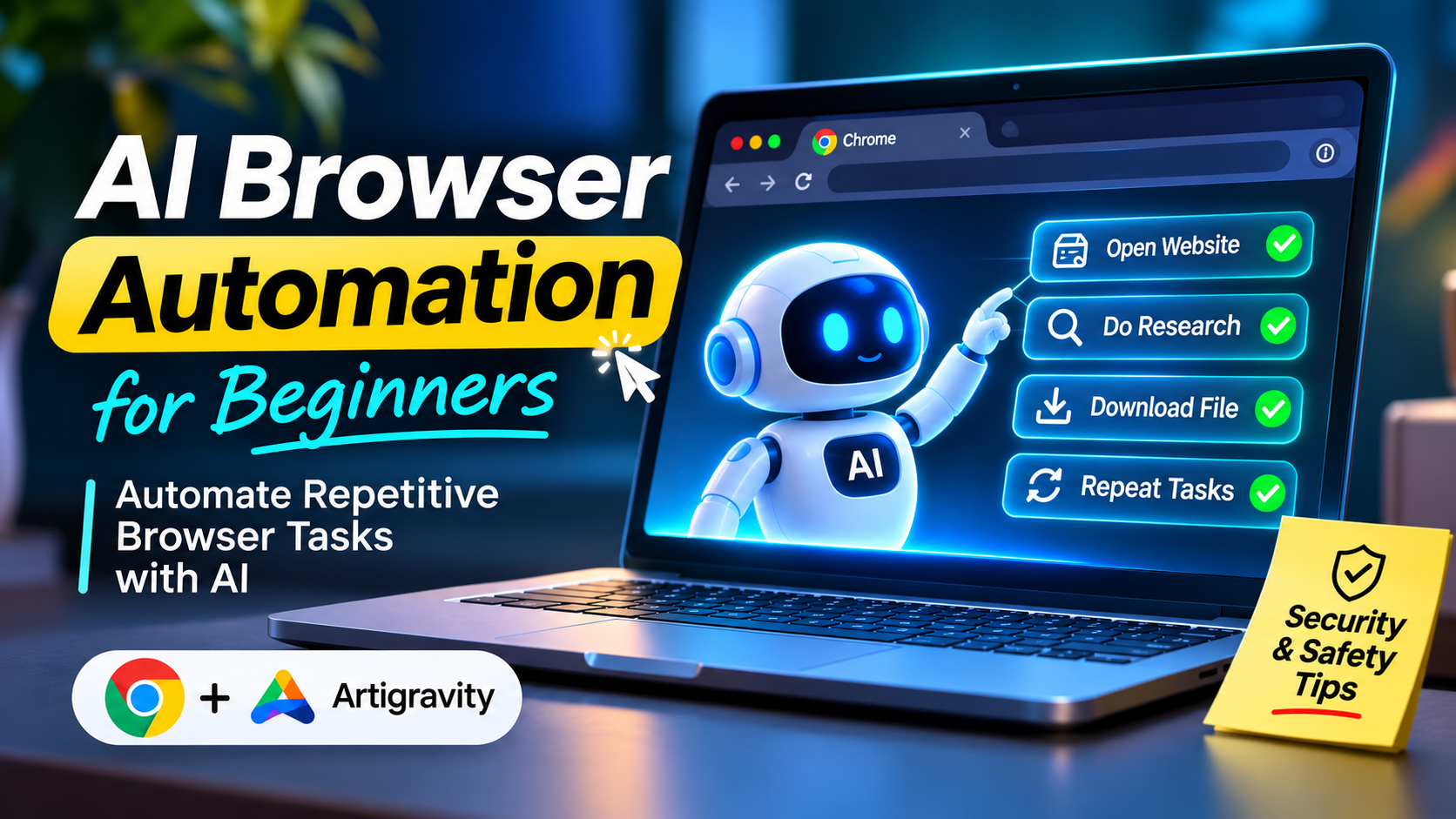
Have you ever found yourself repeatedly completing the same tasks in your browser?
Whether you’re a content creator uploading videos to cloud dashboards, a freelancer entering data from spreadsheets into online forms, or an online business owner checking a competitor’s stock levels, repetitive browser tasks can waste hours of your time.
Previously, you would have needed to learn a programming language and write hundreds of lines of code. Now, with AI browser automation, you can instruct a browser using natural language.
This guide covers what AI browser automation is, how it works, how professionals use it, what it may cost, and how to get started more safely.
1. What Is AI Browser Automation?
AI browser automation allows you to use an artificial intelligence assistant as a co-pilot to complete tasks in a web browser.
You can give it instructions such as:
- Open my project dashboard and download the latest report.
- Complete this online submission form using the product notes I’ve provided.
- Check this web page each morning and alert me if it has changed.
The AI assistant interprets your request, navigates to the website, identifies buttons and fields, and carries out the steps it is permitted to perform.
2. How Does It Work?
To understand how an AI assistant works in Google Chrome, think of it as a digital assistant that has three main abilities:
- EYES – Scans the webpage: It can inspect page elements and screenshots to understand the layout, buttons, form fields, dropdowns, and dialog boxes.
- BRAIN – Understands the task: The AI model interprets your instruction and creates a plan. It decides what to do first, waits for pages to load, and checks what happened before moving to the next step.
- HANDS – Interacts with the browser: It can click, type, scroll, and perform other browser actions through the automation tools it has been given access to.
Understanding how automation is detected
Automation tools can interact with web pages in different ways, but that does not make them indistinguishable from human users. Websites may use bot detection, rate limits, and session tracking. Depending on the platform’s terms of use, automated activity may be detected or restricted.
3. Example – Professional Video Creation
Let’s look at how a freelance video creator or digital agency could use AI browser automation.
A typical workflow:
Prompt and assets → AI video generation web app → Cloud storage or editor → Review
Video creators often repeat the same tasks:
- Navigate to an AI video creation website.
- Upload image keyframes and enter detailed cinematic prompts.
- Wait for the video to render.
- Review the result, download the video, and transfer the MP4 file to a project folder or cloud workspace.
With an AI browser automation workflow, the creator can provide the prompts and assets, then ask the agent to handle supported repetitive steps. It may open the website, enter scene prompts, wait for generation, check the status, and download the finished video to a chosen workspace folder.
This can reduce the time spent waiting and repeatedly clicking through the same steps. You should still review the output and supervise important actions.
4. Is AI Browser Automation Free?
A common beginner question is whether browser automation is completely free. The answer depends on the tools and services involved.
| Layer | Typical cost | Details |
|---|---|---|
| Browser automation | Often free | Chrome DevTools Protocol (CDP) and some MCP connectors are available as free tools. |
| AI assistant (such as Antigravity) | Free options or subscription | Availability, usage limits, and paid plans depend on the platform. |
| Websites you automate | Depends on the service | Paid SaaS platforms, video-generation services, and cloud platforms may require subscriptions or usage credits. |
There may be no separate charge for the browser automation connection itself. Your overall costs depend on the AI platform, its usage limits, and the external websites or services you use.
5. Getting Started – Setting Up Chrome
Some AI browser automation workflows connect to Chrome through a debugging port. If you are using a tool such as Google Antigravity, follow the connection method and setup instructions supported by your installed version.
Important: Chrome 136 and later
Modern Chrome versions do not allow remote debugging to be enabled against the default Chrome data directory in the old way. A separate, non-default user data directory is required. This helps keep the automation browser profile separate from your regular Chrome profile.
Step 1: Create a New Chrome Profile
You want to create a new Chrome profile to connect your automation to the AI assistant.
This will ensure that your automation is separate from the rest of your personal activity on Chrome.
Step 2: Connect your automation tool
Open your automation tool and follow its documented Chrome DevTools connection steps. In Antigravity, the available browser connection workflow can vary by version and configuration. Review any permission prompt before allowing the agent to attach to a browser session.
Do not assume every Antigravity installation automatically connects to this port. Check the settings and documentation for the version you are using.
6. Safety Tips, Privacy and Security
AI browser automation can save time, but you are allowing an AI agent to interact with websites on your behalf. Understand what it can access before you connect it.
1. Your browser is still connected to the internet
Your browser runs on your computer, but that does not mean all the information it displays stays on your device. Depending on the tool and configuration, page content, screenshots, and other browser information may be sent to the AI service for processing.
Check the privacy policy and data-handling settings of the tool you use. Never assume that everything shown on your screen is processed locally.
2. Use a separate browser profile
Use a dedicated Chrome profile for automation instead of your everyday profile. Avoid signing into personal accounts or saving sensitive information in that profile.
A separate profile reduces the information and sessions exposed to the agent, but it does not make automation risk-free.
3. Protect the remote debugging connection
Remote debugging can give an attached tool significant control over the browser. Use a separate user data directory, keep the debugging endpoint restricted to your own machine, and never expose port 9222 directly to the public internet.
Only connect tools you trust, and close the automation browser when you have finished.
4. Avoid sensitive websites
Do not give an AI agent access to banking websites, payment gateways, password managers, primary email accounts, or healthcare platforms. If you are signed in, the agent may be able to view or interact with information available in that browser session.
5. Monitor automation and approve important actions
Keep an eye on what the agent is doing. Review important steps and require your own approval before sensitive actions.
Avoid letting an agent independently send communications, delete cloud files, make financial transactions, or publish live content. If anything looks unexpected, stop the automation and review the session.
Conclusion
AI browser automation is changing how digital creators and professionals handle repetitive online tasks. AI assistants can inspect web pages and interact with browser controls to help with form entries, asset downloads, and multi-step workflows.
However, convenience should not come at the cost of security. Use a separate browser profile, understand what data your AI tool may process, avoid sensitive websites, and supervise important actions.
Start with a simple, low-risk task. Once you understand how the workflow behaves, you can decide where browser automation genuinely saves you time.
Share this article · Follow SSK Decode AI
Discover More
View all
Gemini Omni 1.2 Flash – Create 15s AI Video 30% Cheaper
Explore Gemini Omni 1.2 Flash: generate AI videos up to 15 seconds, refine clips through multi-turn editing, improve character consistency, and learn about pricing and access.

Can You Really Trust What You See Online? How Google SynthID Spots AI Deepfakes
Can you trust videos and images online? Learn how Google DeepMind’s SynthID embeds invisible watermarks in AI-generated media, what its detector can reveal, and why a missing watermark does not prove content is real.
5 Free AI Tools for Beginners to Create YouTube Videos, Voiceovers, Music & Images
Discover 5 free AI tools for beginners to create YouTube voiceovers, AI music, images, and videos. Learn about free-plan limits and commercial-use restrictions.