Transform Your Photos: Upscale to 4K for Free with ChatGPT & Gemini
Learn how to easily upscale your photos to stunning 4K resolution using ChatGPT and Google Gemini, ensuring identity preservation and photo quality enhancement.
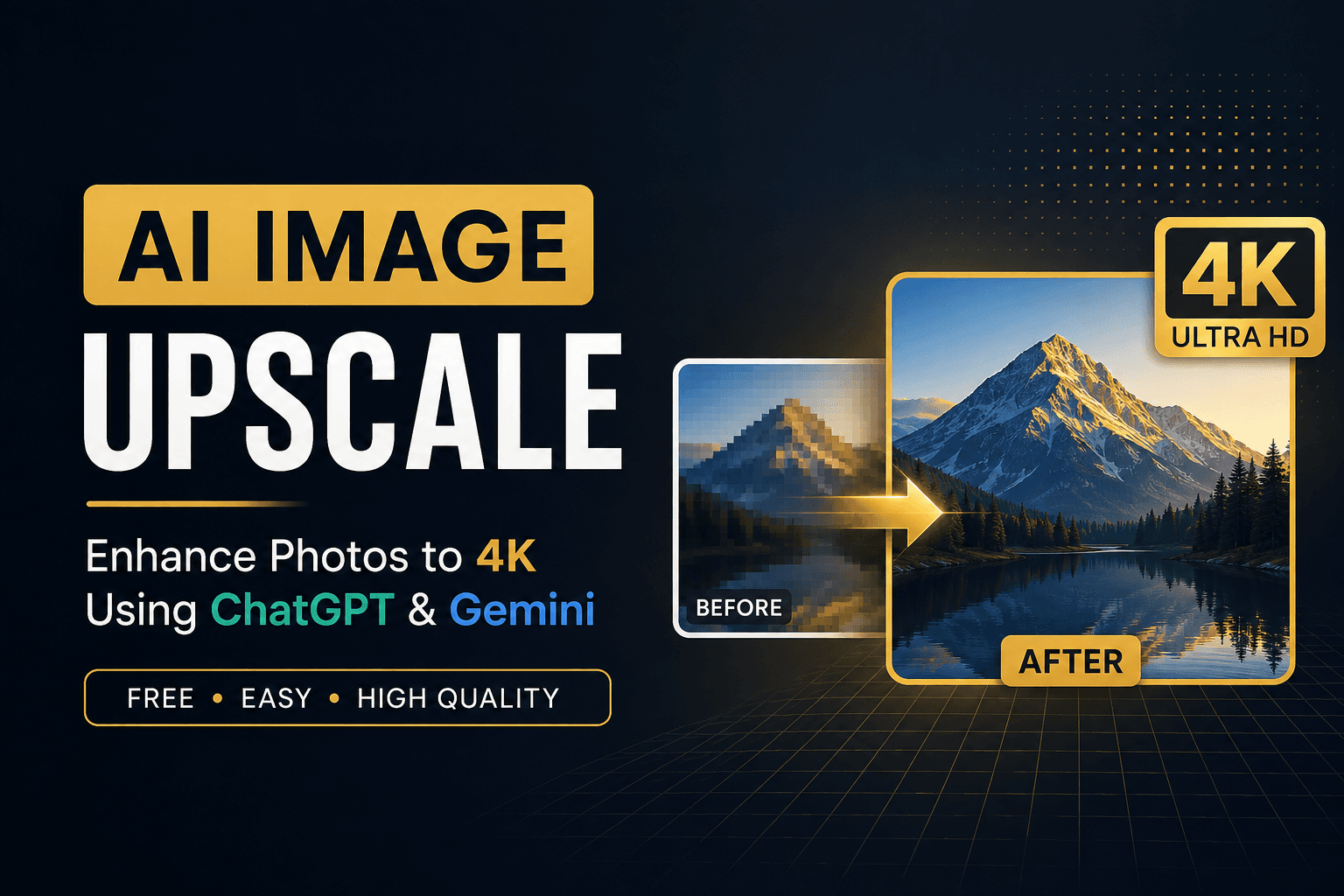
Transform Your Photos: Upscale to 4K for Free with ChatGPT & Gemini
Want to enhance your photos to high-quality 4K resolution without the need for expensive software? Look no further! With AI tools like ChatGPT and Google Gemini, you can effortlessly upscale your existing images while maintaining their original integrity. In this guide, we'll provide you with a professional AI image upscale prompt that you can use to generate a sharper, more detailed version of your images.
What Is AI Image Upscaling?
AI image upscaling leverages artificial intelligence to enhance the resolution and visual quality of existing images. Unlike traditional methods that merely stretch pixels, AI models intelligently augment details, including:
- Facial details
- Hair strands
- Beard texture
- Skin texture
- Clothing details
- Image sharpness
- Fine textures
- Lighting and dynamic range
- Compression artifacts
This technology is particularly beneficial for portraits, as it improves facial features while preserving the overall look of the original photograph.
Can You Upscale Photos for Free Using ChatGPT and Gemini?
Yes! You can upload an image to either ChatGPT or Google Gemini and provide a detailed enhancement prompt. However, be aware that the availability and limits of image editing features may vary based on your account type and model.
Workflow Overview
- Upload Photo
- Add AI Upscale Prompt
- Generate Enhanced Image
- Download the Result
You don’t need costly software for basic photo enhancements.
Best AI Image Upscale Prompt
To achieve optimal results, use the following detailed prompt after uploading your photo:
Enhance and upscale the reference portrait to premium professional-photography quality while preserving the original image as faithfully as possible.

IDENTITY PRESERVATION — ABSOLUTE PRIORITY
Strictly preserve the exact identity of the subject. Do not alter facial identity, facial geometry, proportions, expression, age, ethnicity, hairstyle, beard pattern, eye shape, nose shape, lips, jawline, cheek structure, skin tone, or any distinctive facial characteristics.

COMPOSITION & BACKGROUND — LOCKED
Preserve the exact original composition, framing, camera angle, subject position, pose, perspective, background, environment, objects, colors, and spatial relationships.

IMAGE QUALITY ENHANCEMENT
Perform a high-quality professional photographic restoration and upscale:
- Recover fine facial and skin details
- Restore natural hair strands and beard texture
- Improve eyelashes, eyebrows, and fine facial detail
- Remove compression artifacts, pixelation, noise, and unwanted softness
- Improve local sharpness without oversharpening
- Increase micro-contrast and fine texture naturally
Note: Ensure that the final image looks like a photograph taken with a better camera rather than a newly generated image.
How to Upscale Your Photo Using ChatGPT
Step 1: Open ChatGPT
Open ChatGPT and start a new conversation.
Step 2: Upload Your Photo
Upload the original portrait or photo you wish to enhance. Use the highest-quality version available for best results.
Step 3: Paste the Upscale Prompt
Copy and paste the prompt provided above into the chat. You can also add:
"Use the uploaded image as the reference. Apply the following enhancement and upscale instructions while preserving the original identity and background exactly."
Step 4: Generate the Enhanced Image
Allow the AI to process the image. The result should improve details, sharpness, texture, and overall photographic quality.
Step 5: Compare With the Original
Always compare the generated image with your original to ensure:
- The face remains unchanged
- Eyes and facial proportions are identical
- Hairstyle is preserved
- The background is identical
- Clothing and accessories are unchanged
- Skin looks natural
If there are discrepancies, you can request the AI to correct those specific issues.
How to Upscale Photos Using Google Gemini
Follow a similar workflow with Google Gemini:
Step 1: Open Gemini
Access the image generation or editing feature available on your account.
Step 2: Upload Your Photo
Upload your original photo.
Step 3: Add the Prompt
Paste the AI image upscale prompt and add:
"Use my uploaded image as the only visual reference. Enhance and upscale it while preserving the person's identity, original background, composition, pose, and lighting."
Step 4: Generate
Ask Gemini to generate the enhanced version. Output quality may vary based on the image model available on your account.
Why This Prompt Works Better Than a Simple Upscale Request
A vague request like "Upscale this image to 4K" lacks specificity and may lead the model to alter crucial elements like facial features, background, and texture. A detailed prompt clarifies:
- Identity preservation
- Background fidelity
- Composition integrity
- Detail enhancement
This clarity guides the AI in making appropriate adjustments without compromising the image's core elements.
Best Photos for AI Upscaling
For optimal results, start with reasonably clear images:
- Smartphone portraits
- DSLR photographs
- Instagram photos
- Old digital photographs
However, remember that AI cannot always restore missing information from overly blurry or compressed images.
AI Upscaling vs Normal Image Resizing
Normal Resizing
Traditional resizing merely enlarges pixel dimensions without adding meaningful detail:
- Example: 1000 × 1000 → 4000 × 4000
AI Upscaling
AI upscaling analyzes the image to reconstruct fine details, enhancing perceived quality:
- Skin, Hair, Eyes, and Textures.
Important Tip: Avoid Over-Enhancement
Be cautious of over-processing. Instead of instructing the AI to create a